
On desktop (Windows, Mac, Linux)
- Press Ctrl + Shift + Delete on Windows/Linux, or Cmd + Shift + Delete on Mac.
- Set “When” to Everything.
- Tick Temporary cached files and pages. Leave passwords and history unticked unless you want those gone too.
- If a login is misbehaving, also tick Cookies and site data.
- Click Clear.
- Restart Firefox and reload the page.
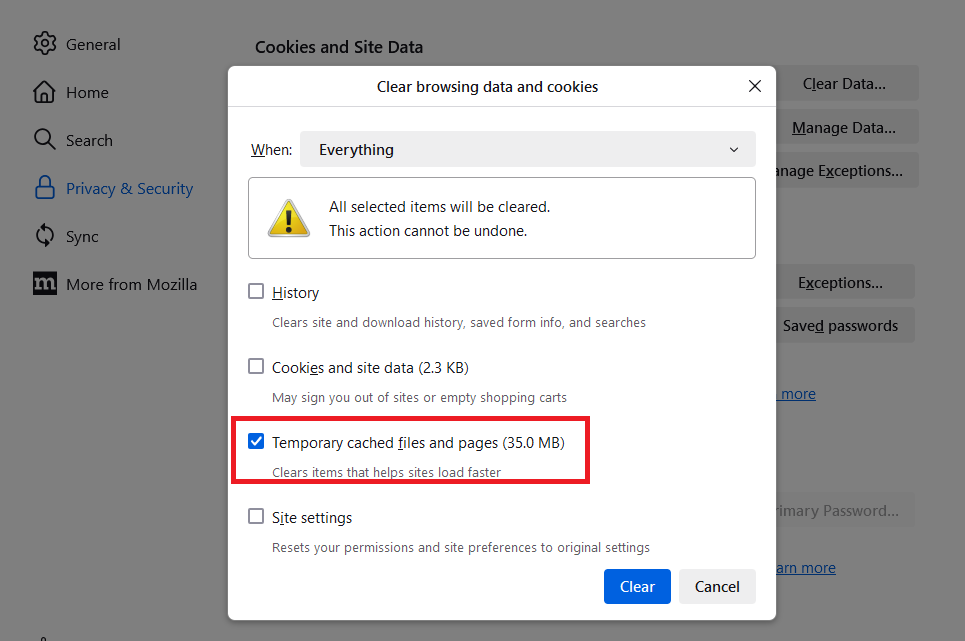
Tip: The long way there is ☰ (menu) → Settings → Privacy & Security → Cookies and Site Data → Clear Data.
On iPhone / Android
- Open the Firefox app and tap the ☰ (menu) button.
- Tap Settings → Data Management (iOS) or Settings → Delete browsing data (Android).
- Select Cache (and Cookies if needed), then confirm the deletion.
- Fully close the app and reopen it.
Just one site?
- Visit the site in Firefox on desktop.
- Click the padlock icon next to the web address.
- Click Clear cookies and site data… and confirm.