
A restart clears out stuck processes and flaky network state. It’s step one for a reason.
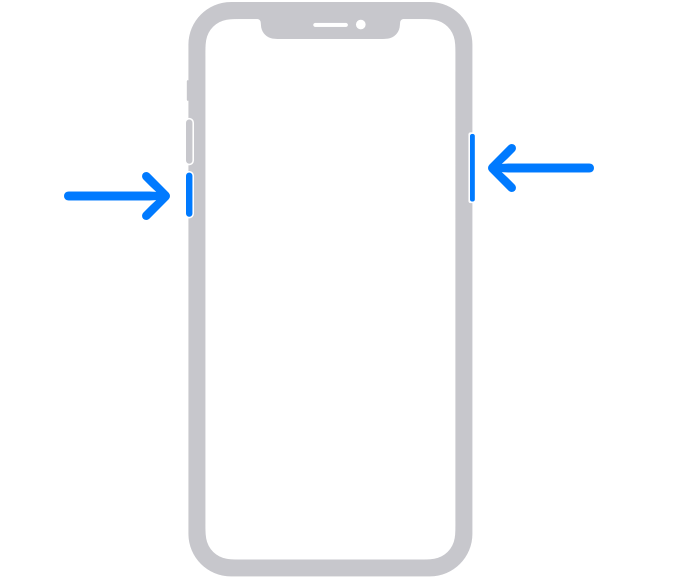
iPhone with Face ID (no Home button)
- Press and hold the side button and either volume button at the same time.
- When the slide to power off slider appears, drag it to the right.
- Wait about 30 seconds for the phone to shut down fully.
- Press and hold the side button until the Apple logo appears.
- Once it boots, try the app or site again.
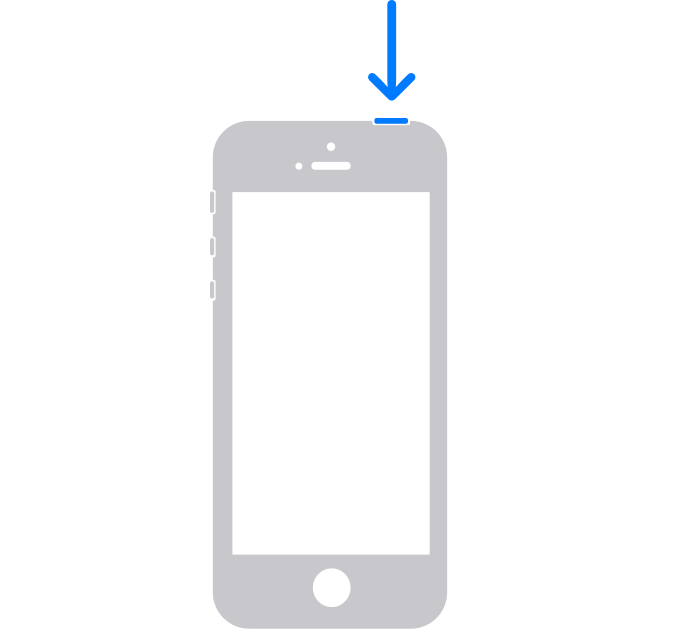
iPhone with a Home button
- Press and hold the side (or top) button until the slide to power off slider appears.
- Drag the slider to the right and wait ~30 seconds.
- Press and hold the side (or top) button until the Apple logo appears.
If the phone is frozen and won’t respond
Force-restart it (this doesn’t erase anything):
- Press and quickly release the volume up button.
- Press and quickly release the volume down button.
- Press and hold the side button until the Apple logo appears (10–20 seconds), then let go.
Note: You can also restart from Settings → General → Shut Down if the buttons are awkward.